
How Mobile Criminalist's Android Agent works
How Mobile Criminalist's Android Agent extracts a phone: what it collects, how it moves data over Wi-Fi, its export encryption, and what it leaves behind.
Image attribution: Art work by Becky Mackay for BARGHEST. Digital art is by SHOCKHAM.
Mobile Criminalist (MK) is one of the most widely used systems among Russian police for extracting and analyzing data from phones. Units of Russia’s Ministry of Internal Affairs and Investigative Committee purchase it. The system can copy and analyze the contents of devices, including without their owners’ consent.
Its Android Agent is an APK installed on a phone to collect data and send it to a computer, including over Wi-Fi. The manufacturer describes system-data extraction, screen capture, and collection from third-party apps. We examined version 9.2.0.125 on laboratory Pixel 7a and Pixel 7 Pro devices running Android 16.
On an unlocked phone, an operator can install the app and approve its permissions without the owner’s voluntary consent. We installed the agent and granted access ourselves, then tested collection, not breaking into a locked phone.
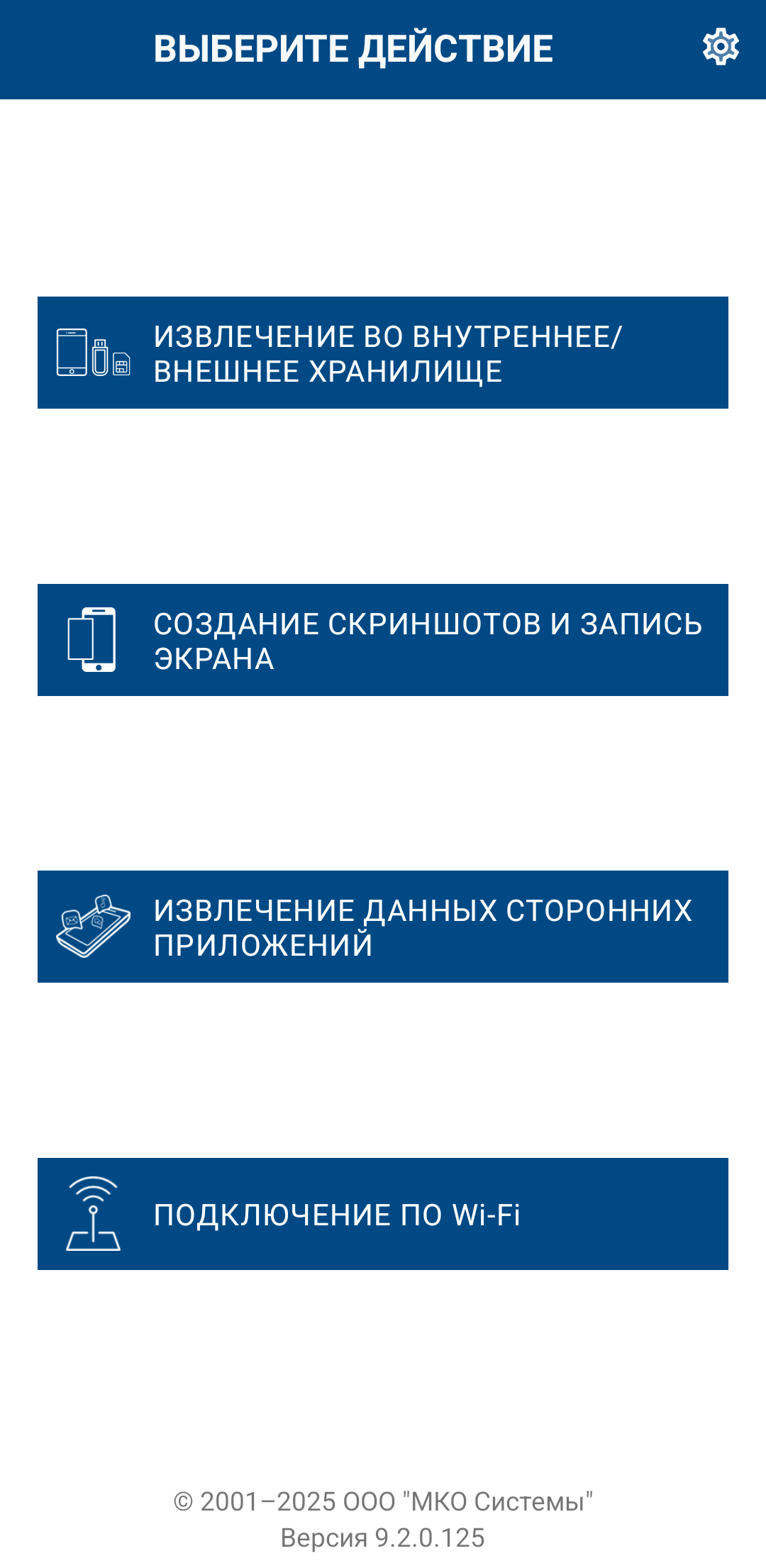
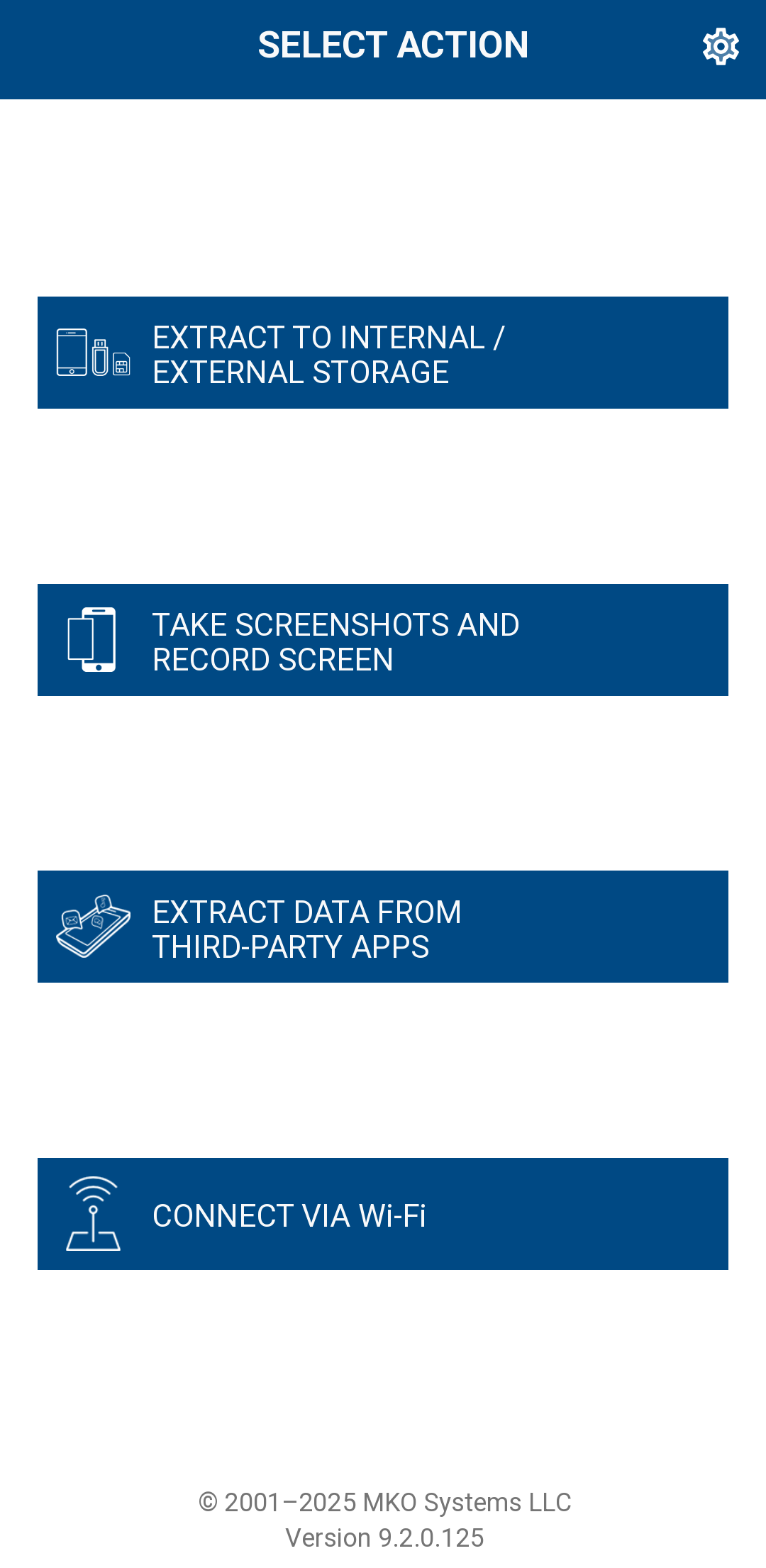
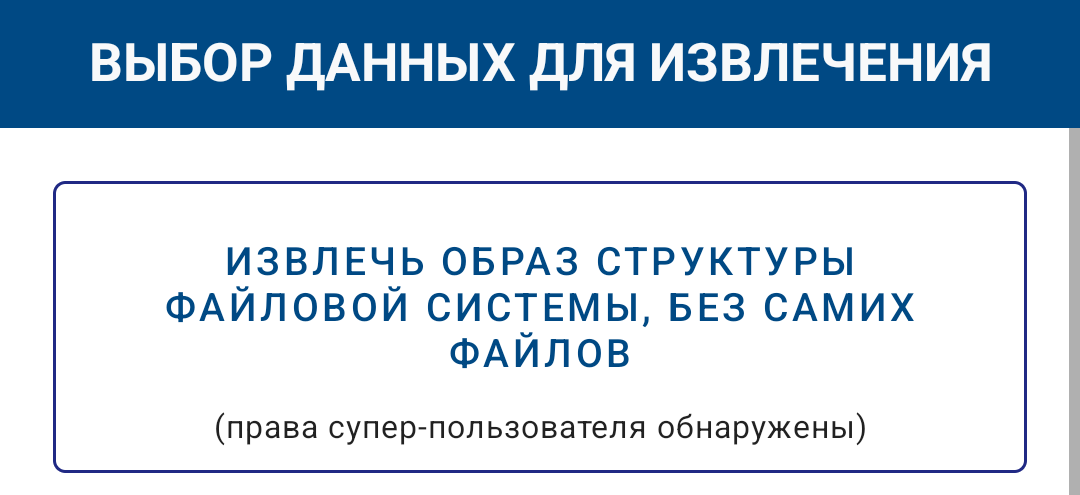
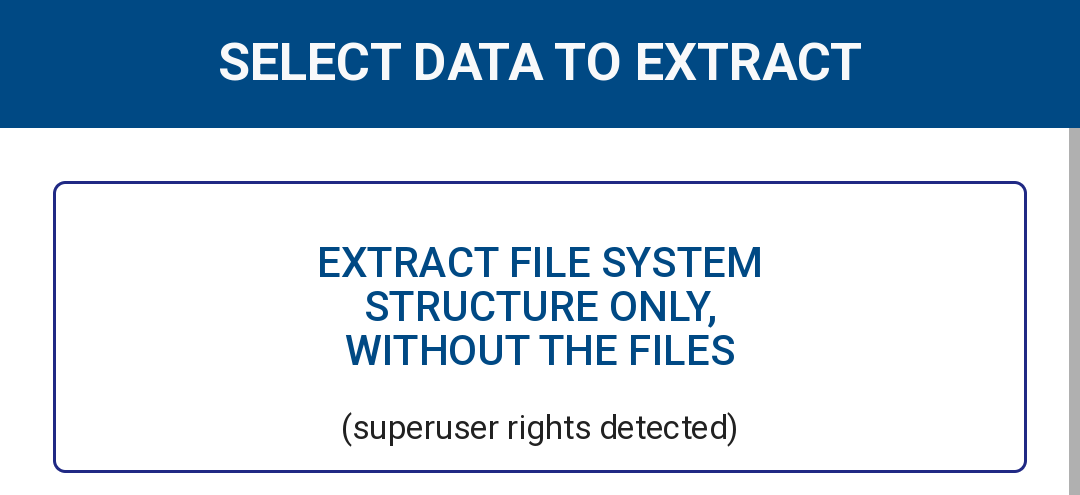
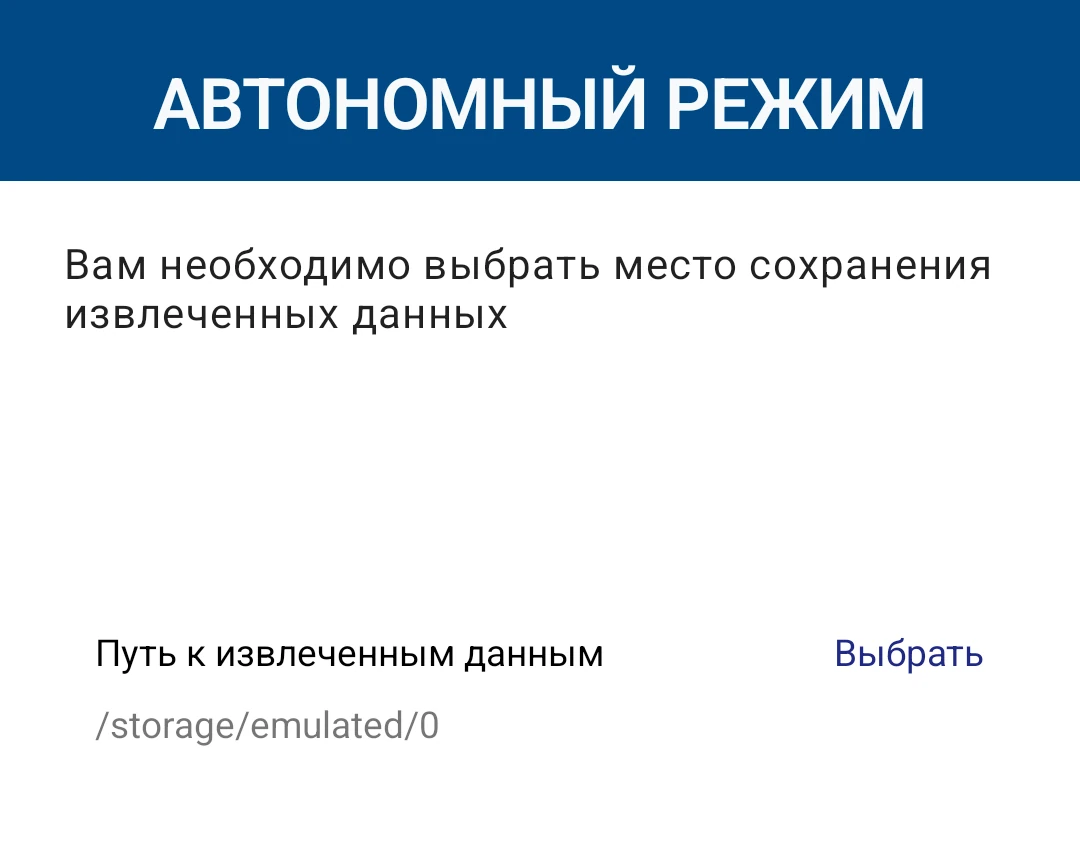
In every image pair, the original is on the left and an editorial translation of the interface text is on the right. The translated image is not a screenshot of an English-language version of the app.
Installation and permissions
A USB cable is not required to install it. The official installation guide describes downloading the APK through a link in the phone’s browser or by scanning a QR code. USB installation and installation from an OTG flash drive or SD card are alternatives. The operator must still install and launch the app on the phone and grant its requested permissions.
The package is mko.systems.mobilecriminalist. Opening the app is separate from granting access to contacts, SMS, or shared files. If storage permission is missing, the agent returns to the mode-selection screen instead of continuing export setup.
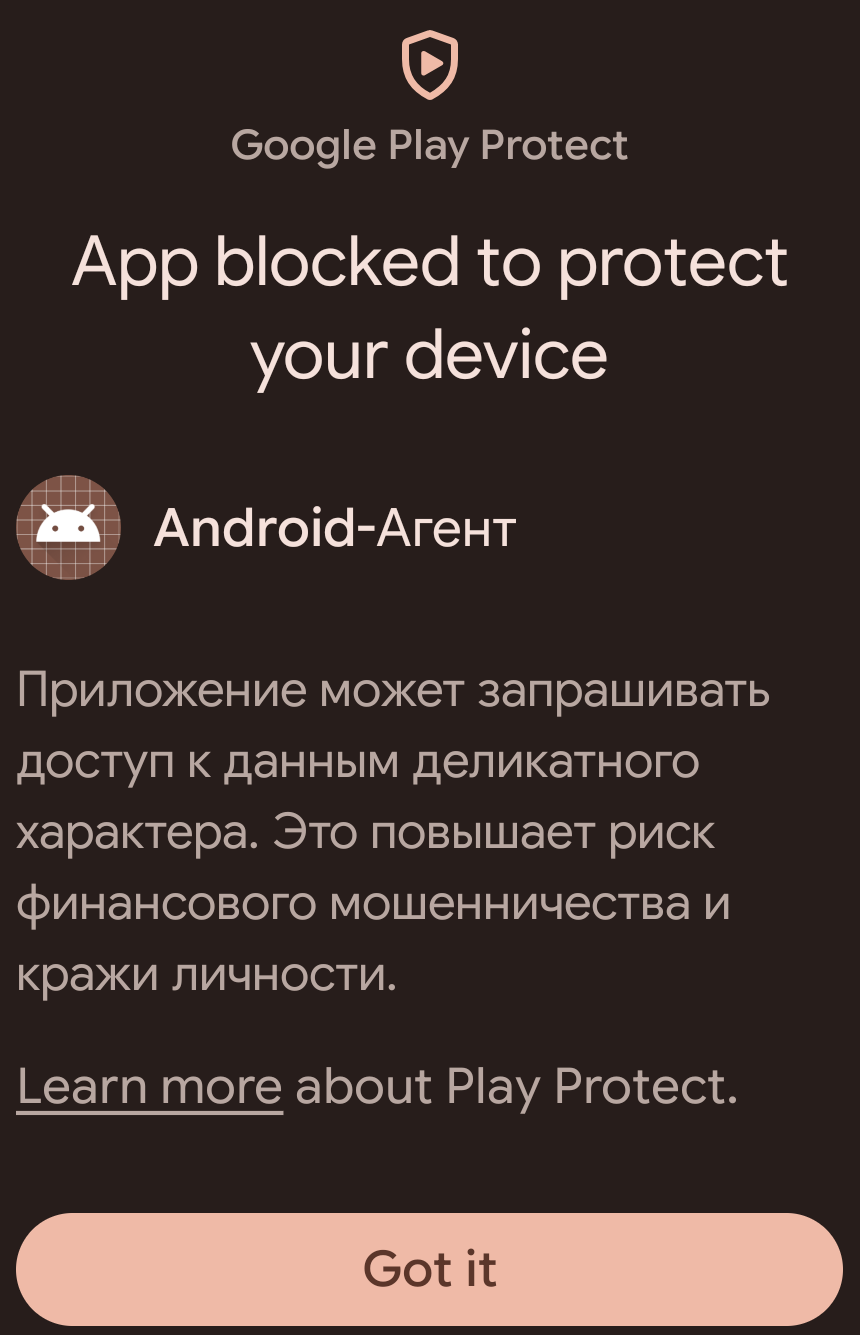
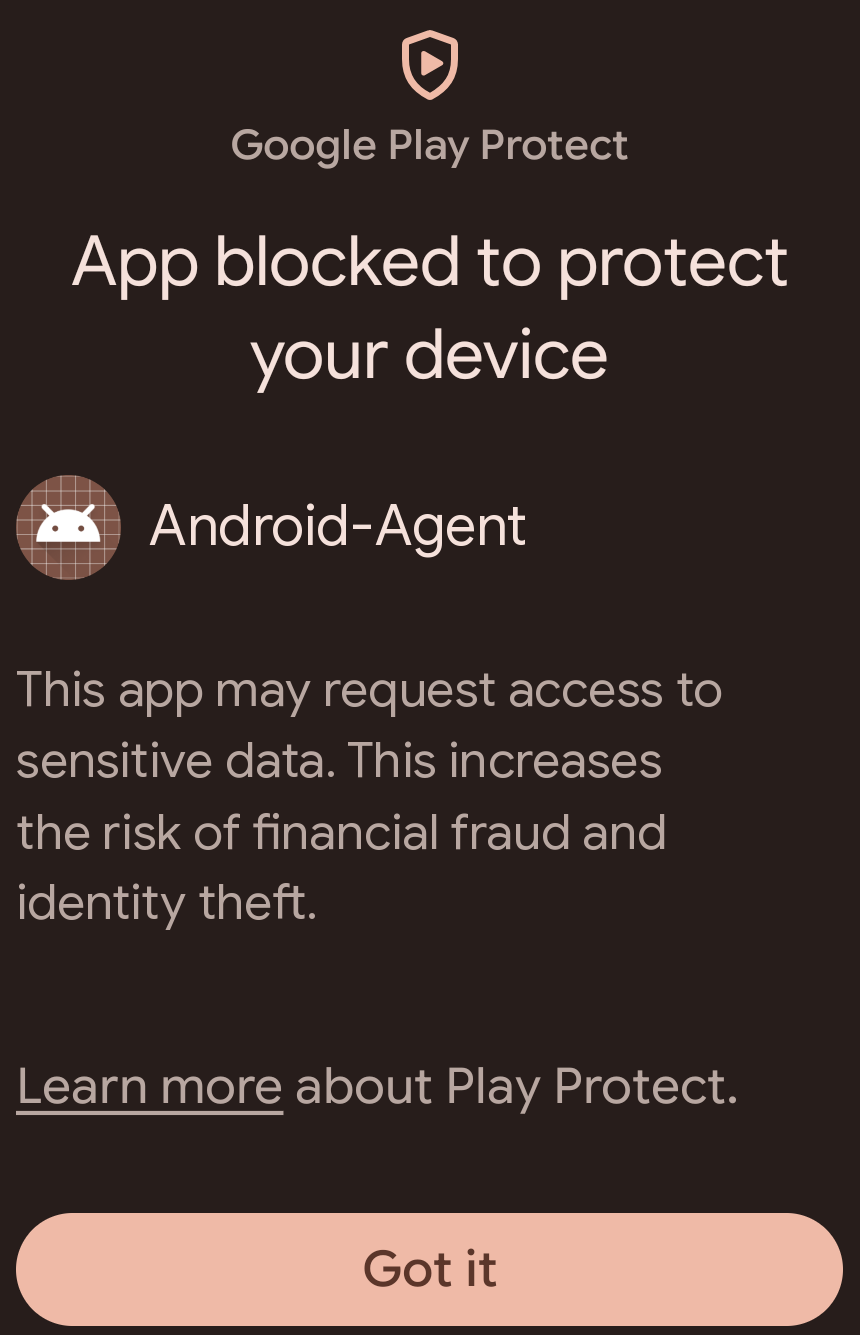
On our Pixel 7 Pro, Google Play Protect blocked installation. We had to change Play Protect settings, enable “Allow restricted settings,” and grant the app permissions before testing it.
Permissions granted
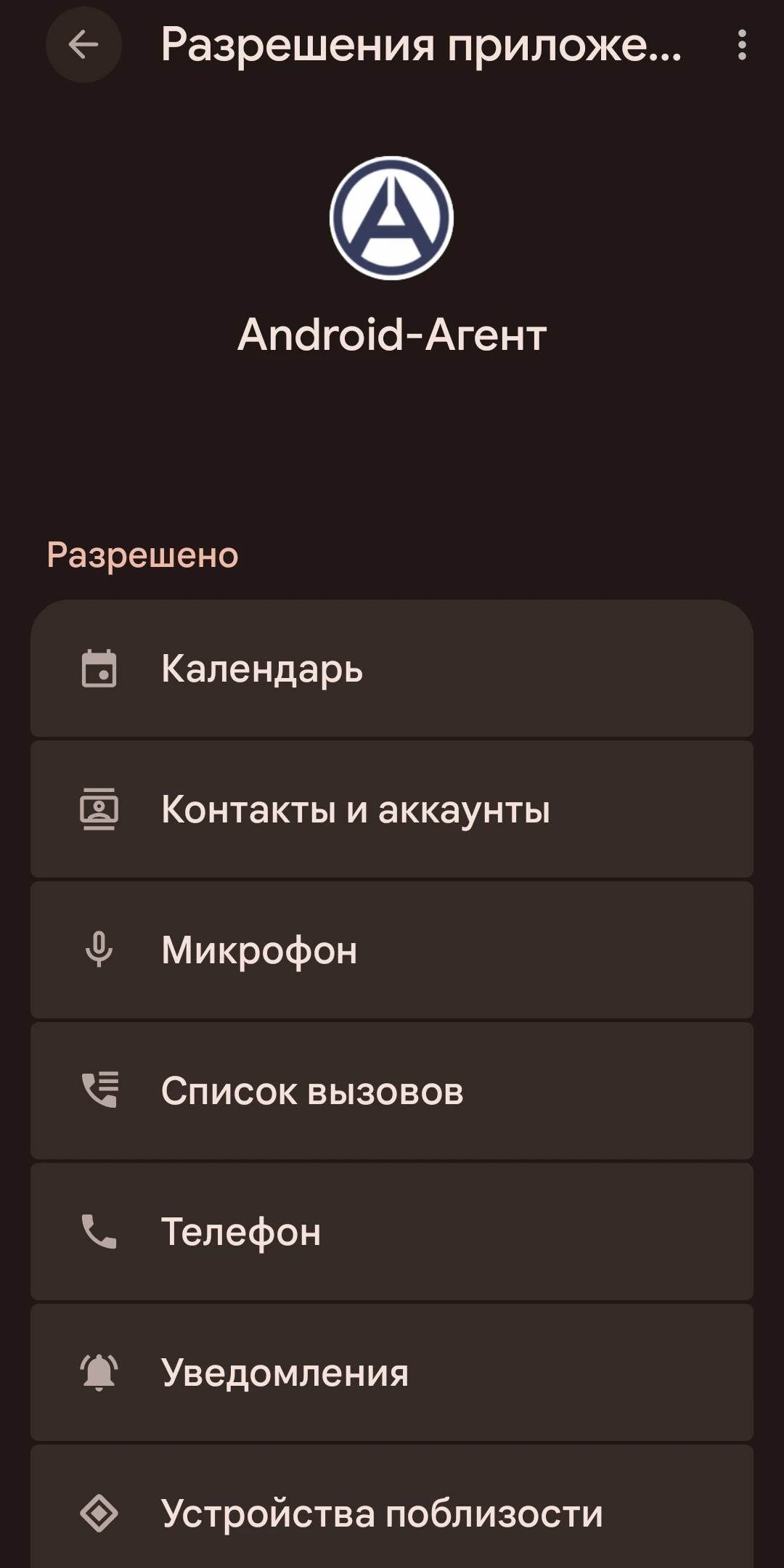
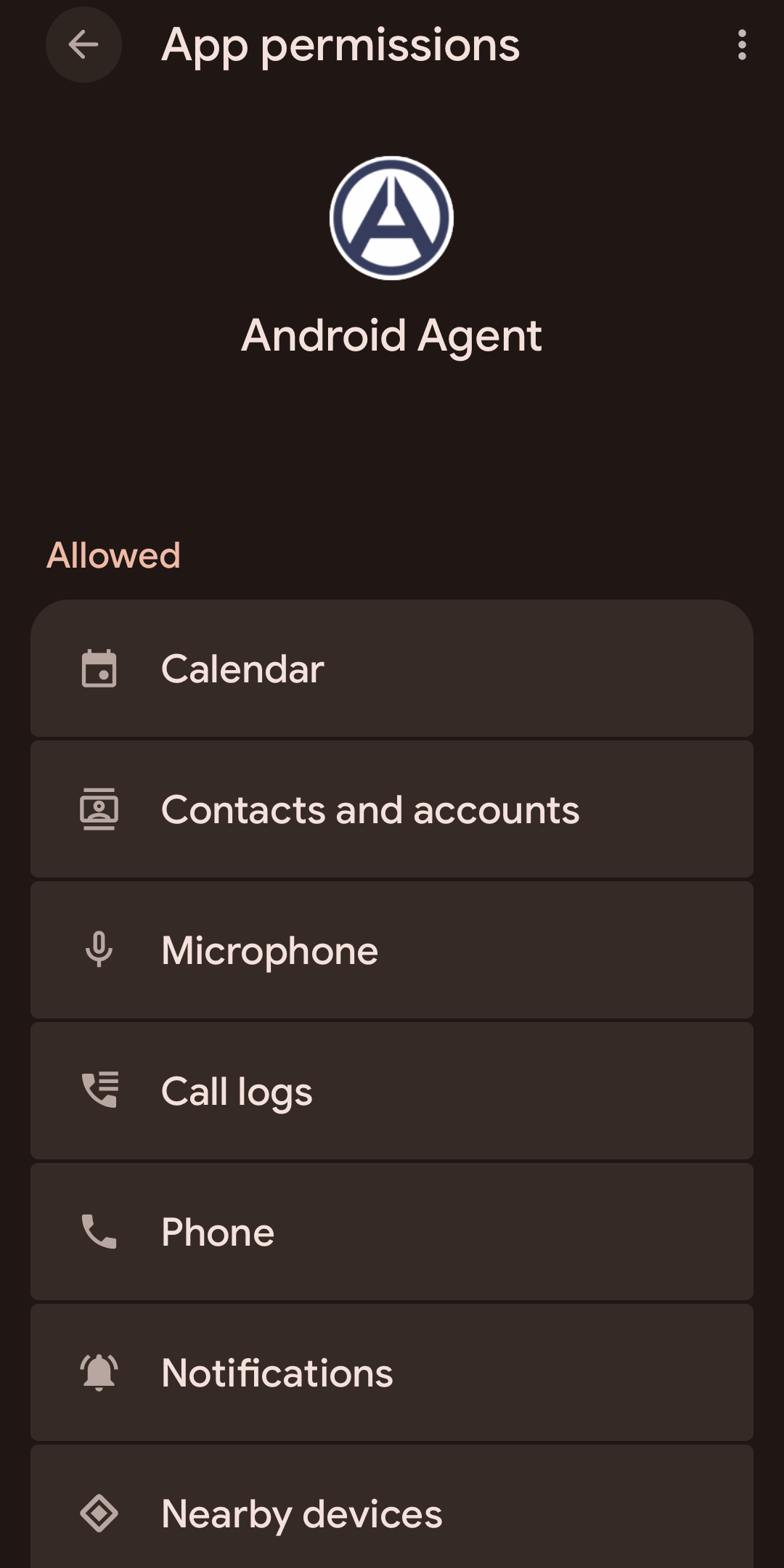
Collecting a category requires the corresponding Android access. Without the required permissions, some collection functions do not work or can collect less data. On the Pixel 7 Pro, the operator has to manually grant 14 runtime permissions covering:
- Calendar: reading calendar records.
- Contacts and accounts: reading contacts and account names.
- SMS: reading messages.
- Call logs and phone: reading the call history and phone state.
- Photos and videos: access to media, including selected visual files.
- Nearby devices: Bluetooth scanning, connections, and advertising.
- Microphone: permission to record audio.
- Notifications: permission to display the agent’s notifications.
We separately enabled All files access and permission to modify system settings. UI-based collection uses the accessibility service; floating capture controls need Display over other apps, and screen sharing requires a system confirmation. These grants serve different modes: accessibility remained off during the Pixel 7 Pro logical extraction.
1. What data the agent can collect
The manufacturer describes three collection methods: logical extraction, screenshots and screen recording, and collection from third-party apps.
Logical extraction
This method collects system records and accessible files in bulk, producing structured tables and file copies.
Standalone mode saves an export to a selected folder. We selected all 17 categories shown below; automatically added device information brought the manifest to 18 entries.
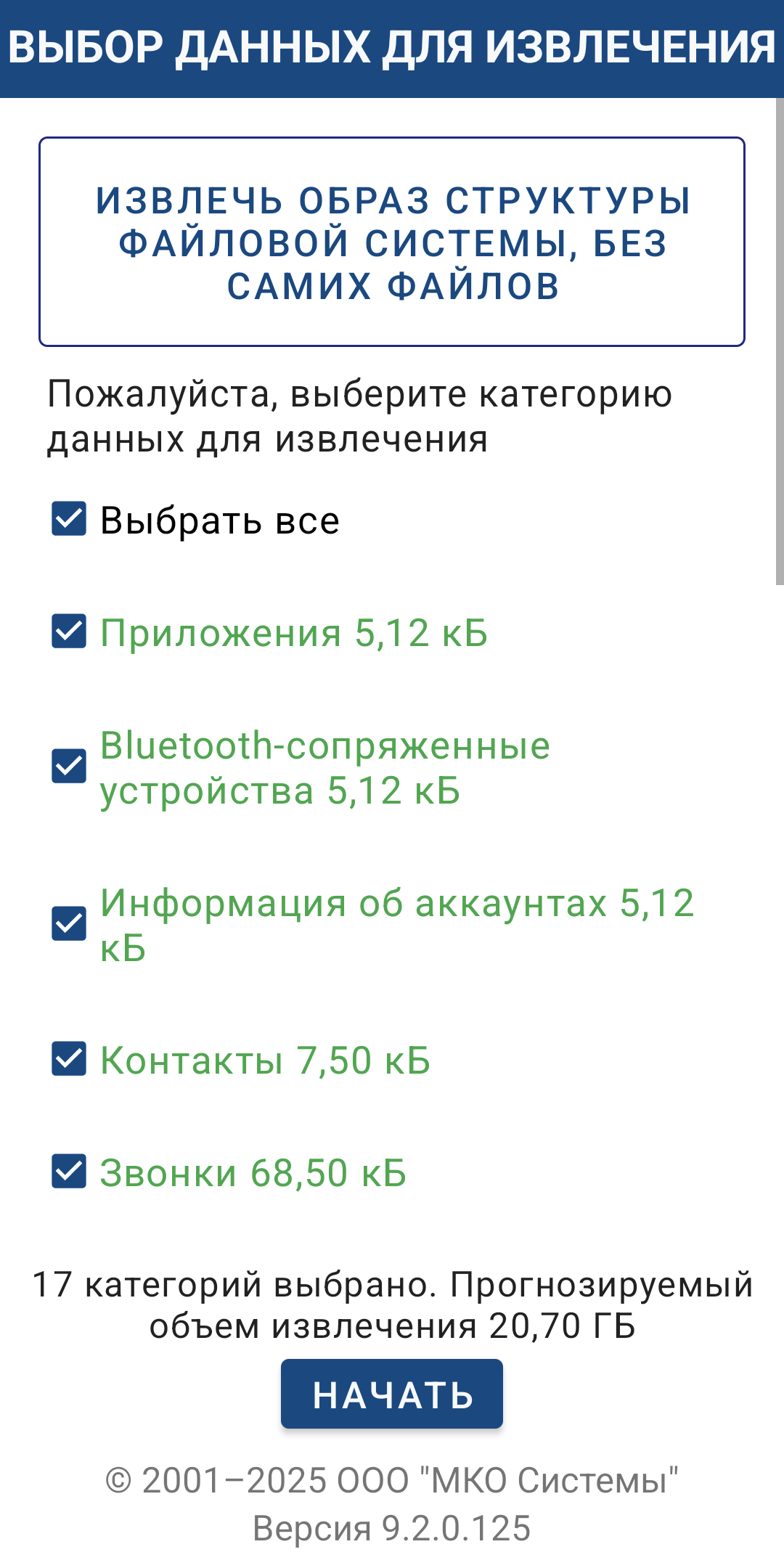
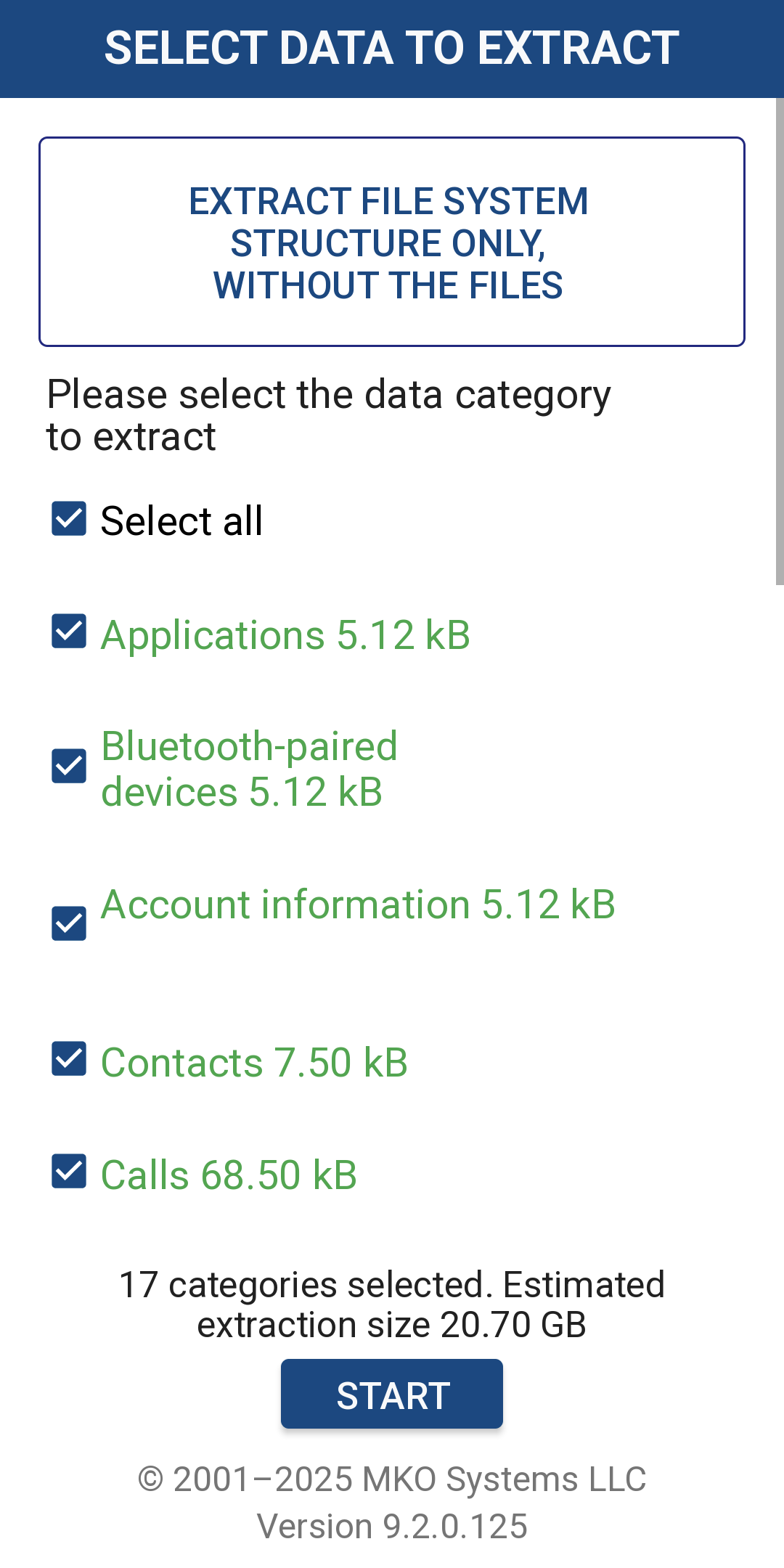
The category list below comes from a separate export generated with our laboratory APK, modified so we could decrypt its output. The export contained records or files in all 17 categories:
- Applications. Names, packages, versions, and installation/update timestamps.
- Bluetooth-paired devices. Names, MAC addresses, device types, and pairing states.
- Account information. Names and types, not passwords; five of eleven system accounts were exported.
- Contacts. SIM names and numbers; the regular address-book tables were empty in this experiment.
- Calls. Numbers, timestamps, durations, and types.
- MMS / RCS. MMS text, addresses, and message parts; RCS extraction was not confirmed.
- Calendars. Calendars, event details, attendees’ emails, and reminders.
- MMS / RCS attachments. Individual MMS attachment files.
- SMS. Text, addresses, timestamps, types, and statuses.
- Media file information. Paths, sizes, types, timestamps, and some dimensions/durations.
- WhatsApp / WA Business media files. JPG and MP4 files from the apps’ directories.
- Audio. MP3 and M4A files stored on the phone.
- Documents. PDFs, text, Office documents, and HTML files.
- Images. JPG/JPEG, PNG, and WebP files.
- Application files. APKs in accessible storage.
- Video. MP4 and MOV files.
- APK files of installed applications. Base installation packages.
Our export included SMS, calls, and files from 2023 to 2026. This is observed coverage, not a fixed retention window: available history depends on what remains accessible and the category’s filters.
Screenshots and screen recording
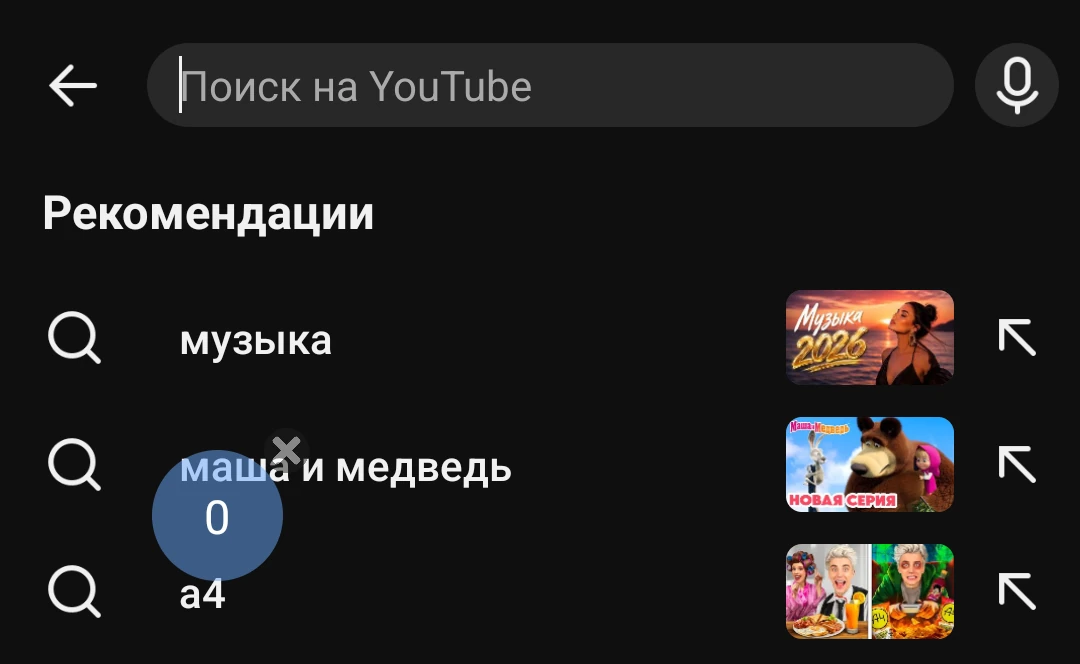
The agent can capture visible content as screenshots or video, with manual control or automatic scrolling. This provides a visual record even when there is no dedicated parser for an app.
Collection from third-party apps
App-specific scenarios use the interface, exports, or backups to collect information. For interface-based collection, the operator grants permissions and enables the accessibility service. The agent then opens screens, clicks controls, scrolls, and reads exposed text, using what the running app can show rather than directly opening its private database.
The manufacturer lists these sources:
- Messengers: WhatsApp, WhatsApp Business, Telegram, Telegram Web, Signal, Viber, Line, Kik, Silent Phone, Wickr Me, AWS Wickr.
- Other communication apps: X/Twitter, Discord, Slack, Zoom.
- Browsers: Chrome, Firefox, Opera, Samsung Internet, Yandex Browser.
In our Chrome version 127 test on the Pixel 7a, the agent captured the title and description of a test history entry through Chrome’s interface. It wrote them into a table it calls chrome_history, inside a SQLCipher database that the agent builds itself. That table is not a copy of Chrome’s own private history database. When we opened the finished export read-only, the database passed its SQLCipher integrity check, so the captured entry really was stored there.
A technical detail: structured UI scraping, not OCR. In the Chrome history scenario, the agent finds text through accessibility view IDs such as com.android.chrome:id/title and …:id/description. Decompiled ParseHistoryItemScenario.parseHistoryItem reads the title like this:
String textFromNode = AccessibilityActionsUtils.getTextFromNode(
    node, ChromeConstantsKt.getAppSourceName("title"));
The scenario turns these UI fields into records and writes them to the agent’s own SQLCipher table. This explains how it can collect visible information without opening Chrome’s private history database, and why app versions and interface changes matter to the collection logic.
2. Running without and with root
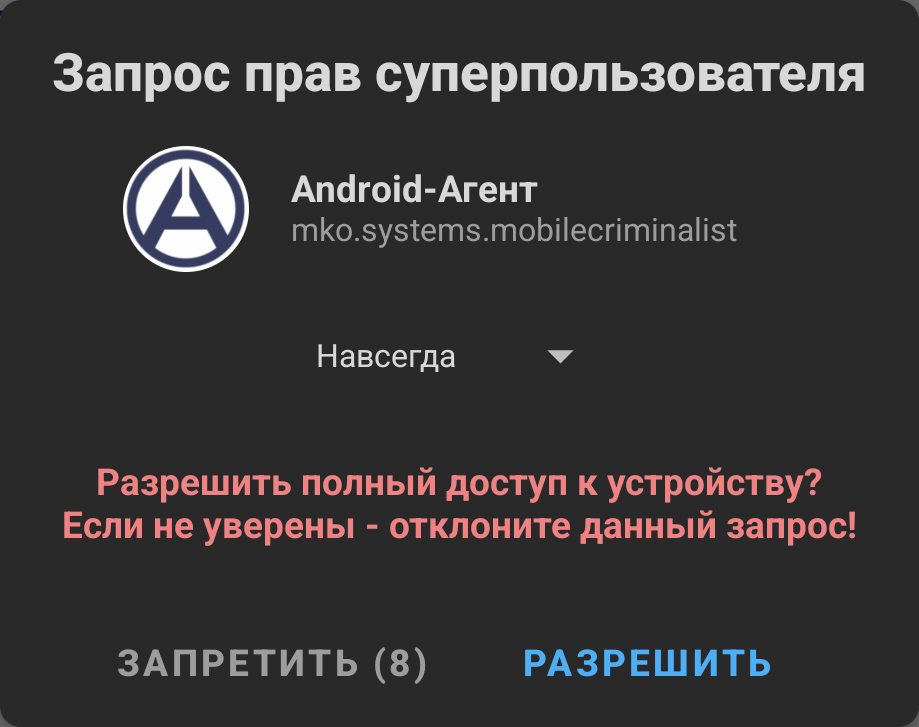
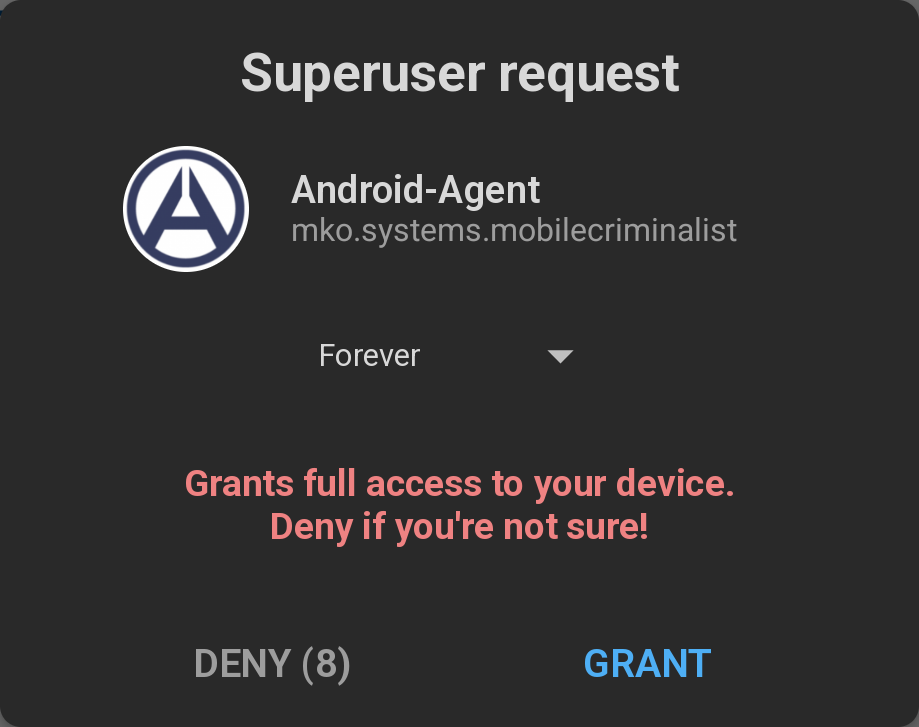
Without root, the agent uses Android permissions to read system records and accessible files; its filesystem map covers shared storage. On our already-rooted Pixel 7a, granting the agent superuser access expanded its filesystem listing to include system paths and private app directories. A separate su process ran the bundled tree utility to build this catalogue. The map contained file paths and metadata, not copies of the files’ contents.
3. How files are transferred from the phone
The official guide describes these options:
- Wi-Fi: the computer connects to the agent on the same local network.
- USB cable: Mobile Criminalist software manages extraction from the connected phone.
- OTG flash drive or SD card: the agent saves an export to the selected storage, and the removable media can be taken to the computer.
Where the export is saved
In standalone mode, the operator chooses a destination folder: on the phone itself, on an SD card if the device has one, or on a supported OTG drive. The screen below shows the Pixel 7a’s shared internal storage at /storage/emulated/0.
Receiving data over Wi-Fi
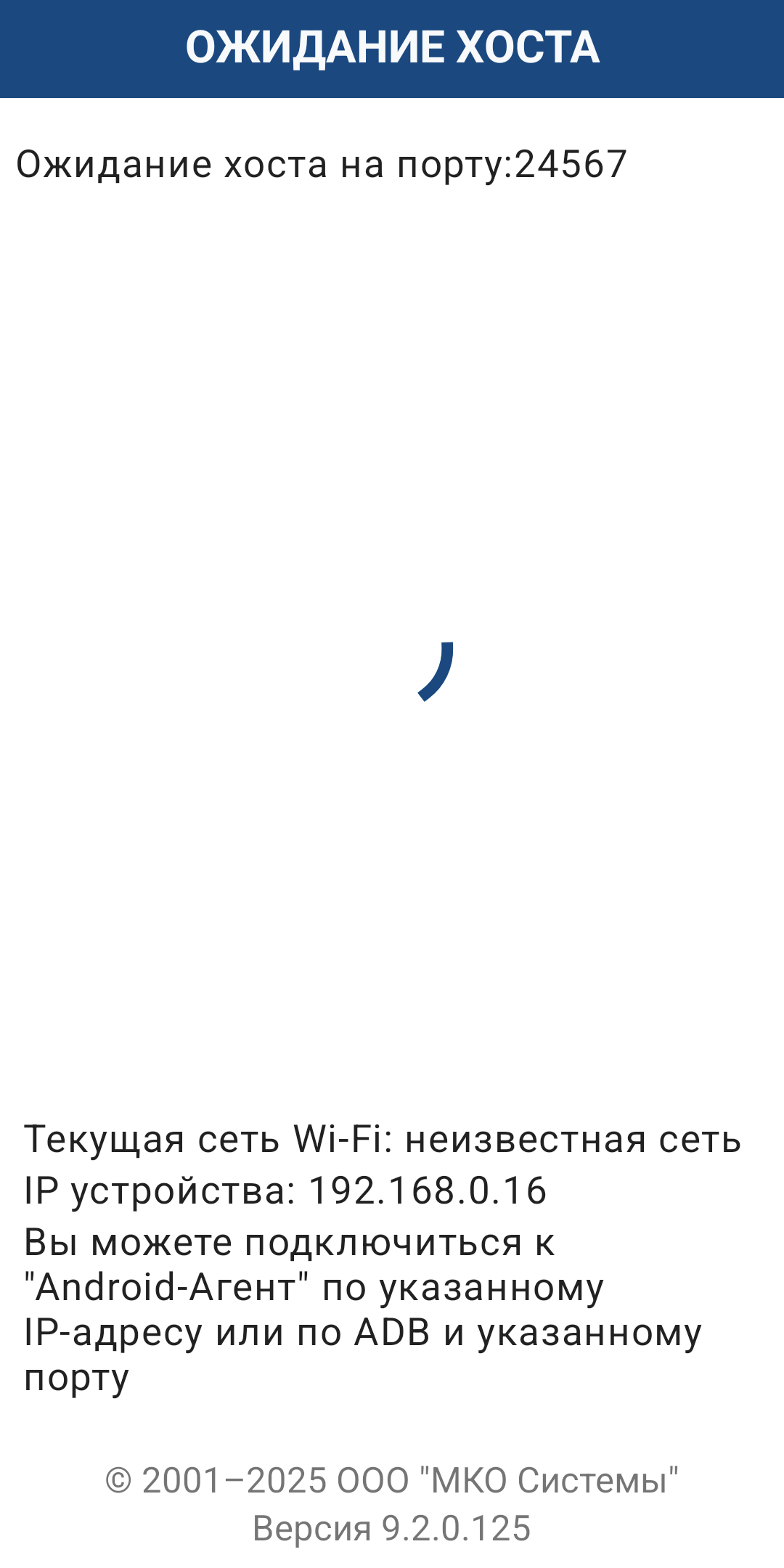
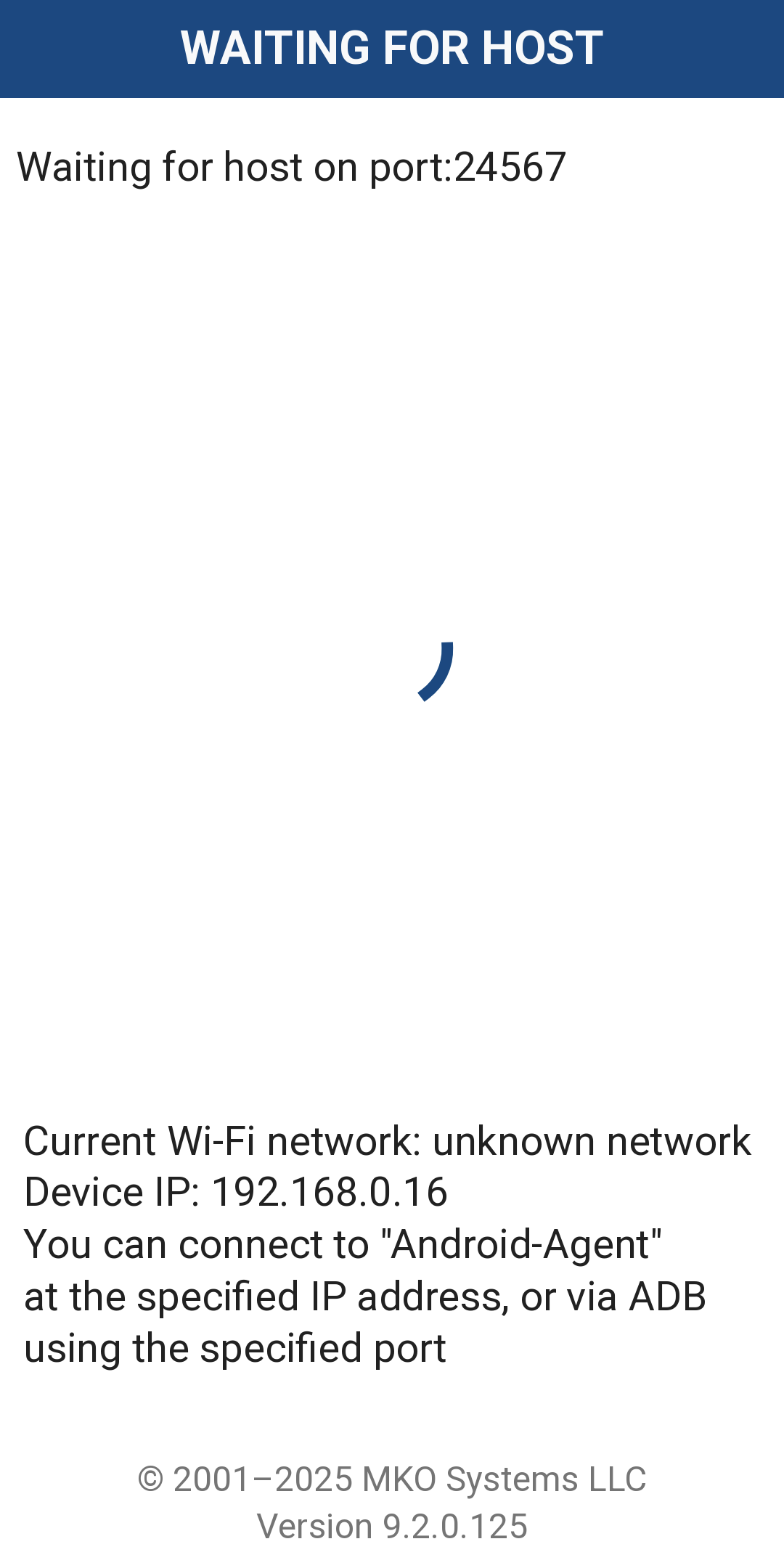
Normally, Mobile Criminalist software on the examiner’s computer receives the data. The phone acts as the server, listening on a hardcoded TCP port, 24567, the same in every install of this build, with no fallback to another port. We did not have the official computer software, so we wrote a Frida script. Once the operator had installed the agent, granted permissions, and started Wi-Fi mode on a reachable phone, our computer could connect without a password, workstation registration, or any additional confirmation on the phone. On the Pixel 7 Pro, with the USB cable disconnected, that was enough to pull the entire completed export off the phone over Wi-Fi: 9,487 files and 20.70 GB, transferred by a client that was not the official software.
File access is not confined to the export
We requested prepared files outside the export folder, including one in the agent’s own private directory, and received matching bytes. The reader accepts a supplied filesystem path directly. Decompiled RepositoryBase.getStreamForRequestedFile ends with:
return new FileInputStream(filePath);Why it matters: a computer that can reach the running agent and knows a path can request readable files that were never selected for export, without authenticating as the examiner’s workstation. The boundary is the agent app’s UID, not the export directory. Our protected control file was denied; this was not a bypass of Android’s app isolation.
The TCP connection had no TLS encryption. Files were transmitted as stored: files already encrypted by the agent retained that protection, but ordinary files requested outside the export received no additional encryption from the transfer protocol.
An end-of-stream can leave the server stuck
On the original agent, a client that connected and closed normally without sending a request left the handler in a tight loop. A subsequent valid request received no reply, although the port remained open. Restarting the agent restored service. Decompiled TCPListener.handleClientSocket shows the loop below; the request-handling body is omitted:
while (ExecutionListener.isAppStarted()) {
    CommonRequestProto.CommonRequest delimitedFrom =
        CommonRequestProto.CommonRequest.parseDelimitedFrom(dataInputStream2);
    if (delimitedFrom != null) {
        // ... request handling ...
    }
}
At end-of-stream, the parser returns null, but that case does not exit the loop. The server handles accepted connections sequentially, so it never returns to accept another client. In practice, any device that can reach the agent over the network can wedge it with a single connect-and-disconnect, no password needed, and the examiner’s own later requests then get no reply. Because the port stays open the whole time, finding it open does not mean the agent is still working.
The same behaviour is reachable locally. An app on the phone can connect to the agent on 127.0.0.1:24567, and because the port is fixed and the handler stops responding after a single connect-and-disconnect, a small loopback client that keeps connecting and closing could, in principle, hold the agent in this state and prevent it from serving an extraction until it is restarted. We did not build or test such a tool; we note it only as a consequence of the unauthenticated, single-connection design.
What happens to the downloaded data? The official workflow says the operator can open the extraction folder on the computer or import the collected data into Mobile Criminalist for further analysis.
4. Decrypting the export
The first export we downloaded could not be opened as ordinary files or SQLite databases. Files use AES-CBC; databases use SQLCipher. The AES key material is wrapped using the RSA-2048 public key bundled in the APK and stored in the XML manifest and keyfile. We did not have the corresponding private key.
We therefore replaced the RSA public-key resource in a laboratory APK with our own and re-signed it, leaving the agent’s code unchanged. We generated a new export, used our private key to unwrap its keys, and decrypted its files and databases. This let us inspect the collected data; it did not decrypt the earlier export retroactively or break RSA/AES.
How the export keys are generated
The AES key is 32 bytes long, but its bytes come from java.util.Random, not SecureRandom. Decompiled PrivacyGuard.generateRandom contains:
byte[] bArr = new byte[i];
new Random().nextBytes(bArr);
return bArr;
Why it matters: a general-purpose random-number generator is not designed to produce unpredictable secret keys. A 32-byte output alone does not make key generation cryptographically secure, even when the encryption algorithm is AES. This is a flaw in the construction; we did not demonstrate recovering a real export key.
Filename-derived IVs in raw-file encryption. The code derives CBC initialization vectors (IVs) from output filenames. In synthetic tests, reusing the same key and output filename caused matching initial plaintext blocks to produce matching initial ciphertext blocks. This can reveal that files share the same beginning even without decrypting them.
Tamper detection in raw files. The raw-file CBC format had no keyed authentication tag. In a separate test using a synthetic encrypted file, a modification still passed our own reader’s padding check. Comparison with a trusted reference hash detected the change. We did not test whether Mobile Criminalist’s official importer would accept such a modified file. These checks concerned raw files, not SQLCipher databases.
5. What remains after uninstallation
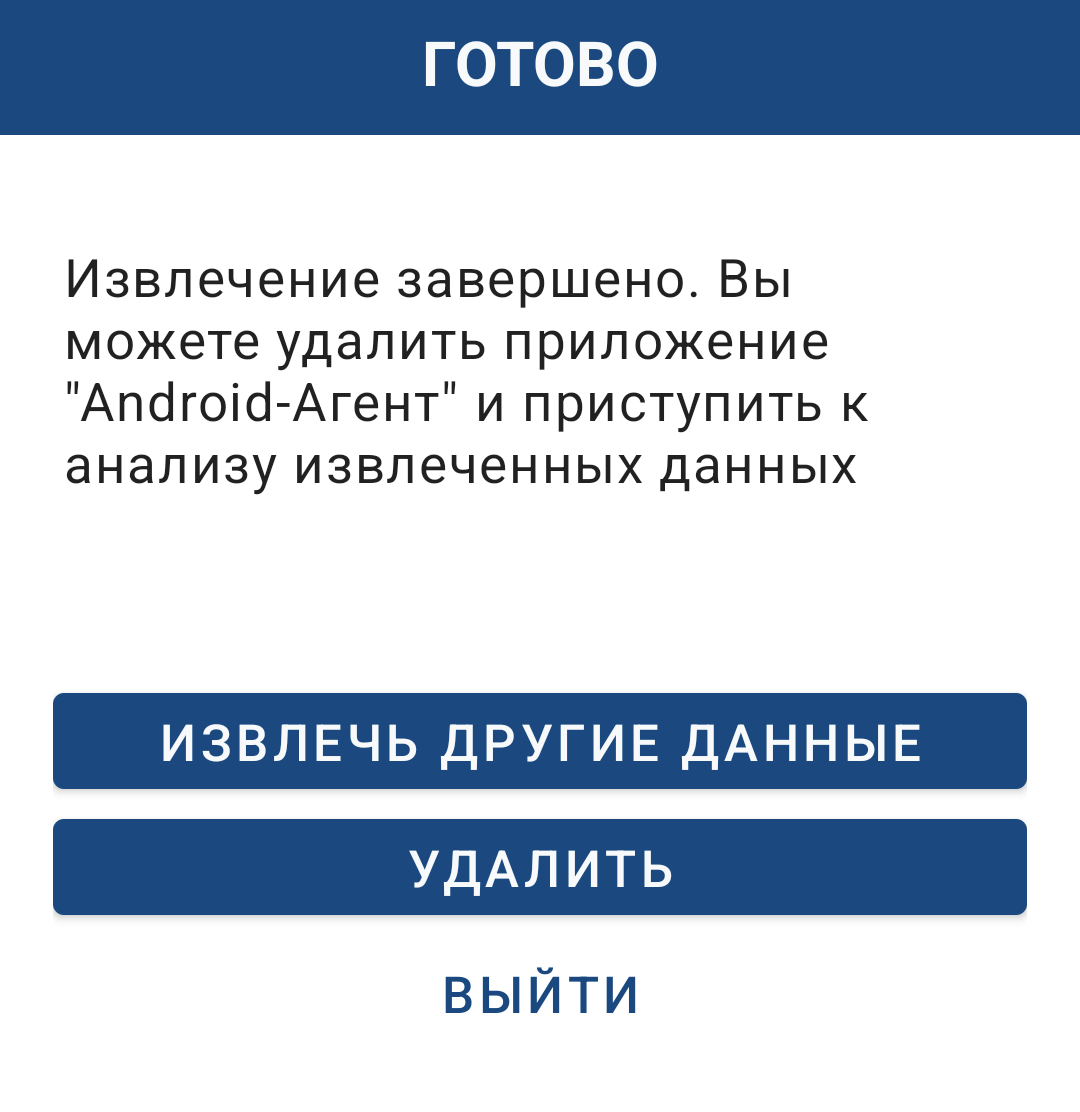
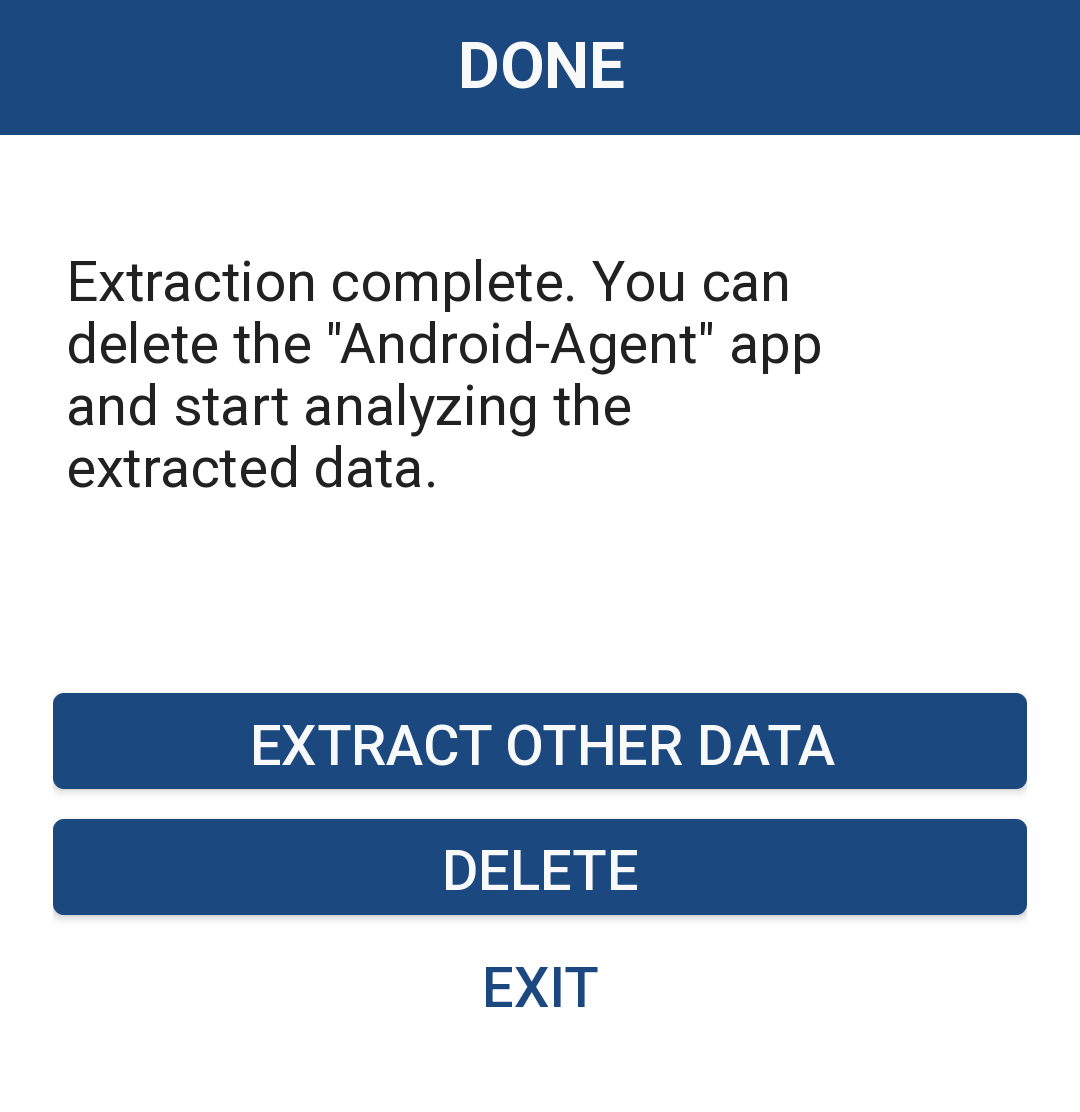
The “Delete” button opens Android’s uninstall confirmation. After we confirmed it, the package disappeared, but the export files remained unchanged: sizes, timestamps, and SHA-256 hashes matched. UsageStats also retained the package name and usage aggregates.
The useful indicators are the package name mko.systems.mobilecriminalist, its UsageStats entries, and stored export files with *.manifest.xml. UsageStats aggregates show recorded use, not copying time or a completed extraction. These traces need to be read together with the files actually received.
What WARD recovers
We ran WARD, our heuristic detection engine for mobile forensic analysis, against a device that had carried the agent and then removed it. With the package already uninstalled and after a number of weeks, WARD V1 still recovered traces:
- Content-provider associations: Android’s process-statistics service still recorded
mko.systems.mobilecriminalistas a client of the providers it had queried: contacts, the SIM phonebook, media, and settings. This reconstructs a record of what the agent reached into, not just that it was once installed. - Hang and crash logs: We identified fourteen ANR traces of the process, and a
DropBoxManagerentry logged a crash of it, dated across many weeks. Both outlived the uninstall of the application.
The catch is log retention, which is not often discussed in logical forensics. These traces survive the uninstall, but each subsystem that holds them, usage stats, app-ops, ANR, DropBoxManager, process statistics, prunes on its own schedule, so the evidence ages out over time. That is why a known indicator is not always enough: it only matches while the trace is still there, and on a device examined long after the event, much of it has already rotated away.
So timing has to be a key part of the method which is why timely and regular forensics analysis are vital. WARD reads these historical subsystems rather than waiting for a known indicator, and it is built with temporal analysis as well. The premise is run it often, analyse behavioural system state and compare captures over time. WARD V1 ships with a pre- and post- baseline, so for example, a capture from after a trip can be measured against one from before. A new tenant like this agent then stands out even when it was installed and removed entirely within the trip, and even as its individual traces fade.
Newer Pixel hardware helps here, but doesn’t solve everything. On recent Pixels, Android’s Intrusion Logging, part of Advanced Protection on Android 16, keeps a tamper-resistant, end-to-end-encrypted record of security events which contains package installs and removals, process starts, ADB file transfers, and Wi-Fi and Bluetooth connections. Because that record is persistent and keyed by package, it does not fade the way the subsystems above do, and a known package name like mko.systems.mobilecriminalist can be matched against it even after the app is gone, with the uninstall itself logged. The limits are important however: it is a small portion of the Android ecosystem being Pixel first, it is opt-in, has to be enabled before the incident, and records coarse system events suited to IOC matching rather than behavioural data. Where it is switched on, it is a durable forward record that complements the retrospective, temporal reconstruction WARD performs on everything else.
WARD will be released at the end of 2026 on GitHub.
APK examined
Package: mko.systems.mobilecriminalist. Version: 9.2.0.125.
APK hashes and build details
| Parameter | Value |
|---|---|
| Package | mko.systems.mobilecriminalist |
| Version | 9.2.0.125 |
| Original APK size | 24 413 102 bytes |
| Original APK SHA-256 | 8ddb7426f2771f128f567e5e93b08e245de566d9d6d1fa9d7c0db16a57331b67 |